BOQ for Customer
Build and win accurate HVAC quotations, faster
Line-by-line BOQ with auto-computed GST, discount and totals. Import directly from your Basis of Design calculation. Export a branded PDF for customer approval — and copy any BOQ for the next similar project.
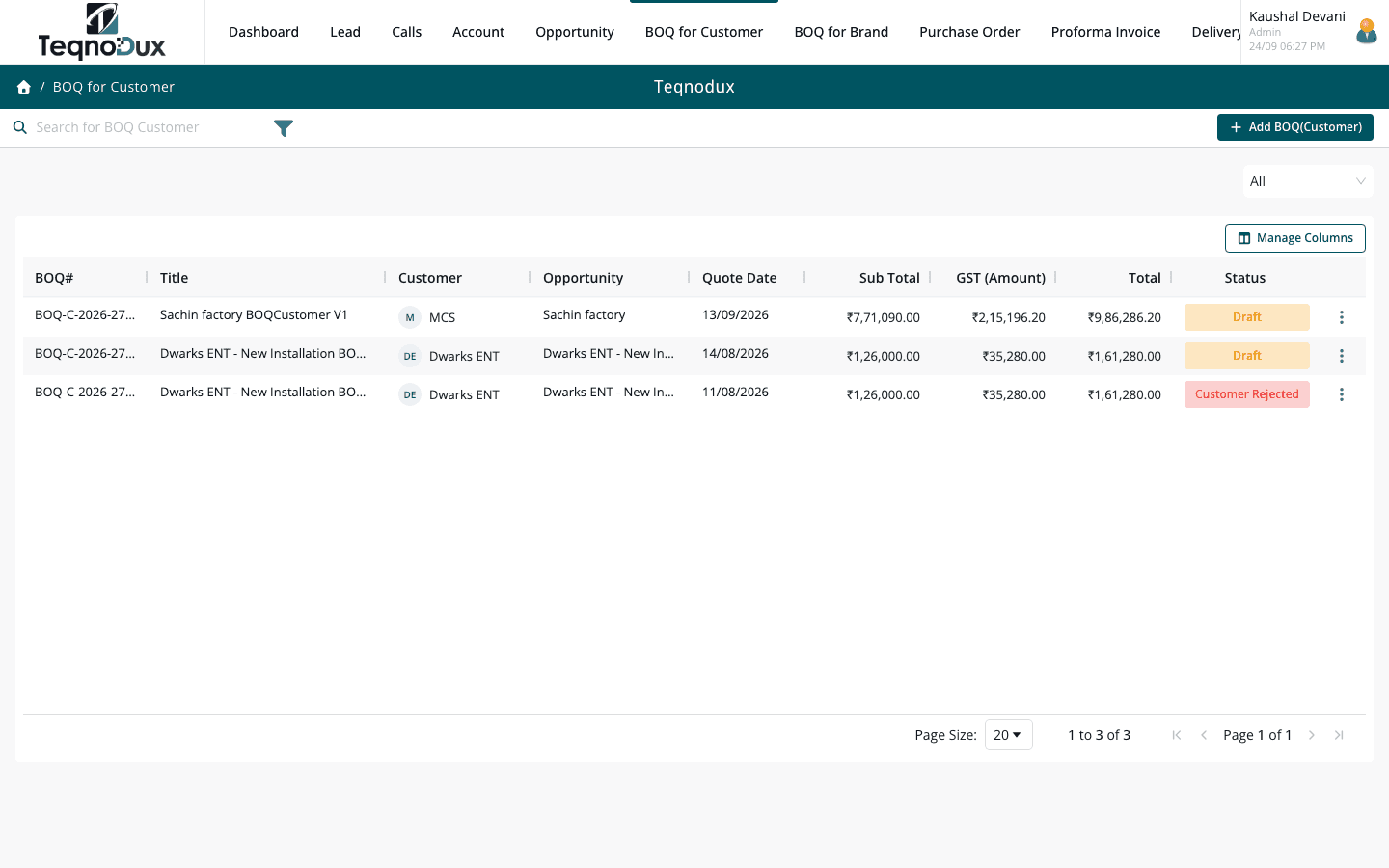
Everything BOQ for Customer handles
Line items with unit cost, quantity, discount % — totals auto-computed
GST rate applied per line or globally; subtotal, tax and grand total shown
Import room-wise load calculations directly from Basis of Design (BOD)
Export polished PDF with your company branding and template
Status flow: Draft → Submitted → Customer Approved / Rejected
Stage transitions can require attachments (signed approval)
Copy existing BOQ to create a revision without starting over
How it works in practice
01
Line items that calculate themselves
Add equipment, materials and labour as line items. Set unit cost, quantity and discount per line. GST rate applies per line or globally. Subtotal, tax breakup and grand total update instantly — no spreadsheet formulas, no reconciliation needed.
- Unit cost × quantity × discount % = line total, auto-computed
- GST rate configurable per line or applied globally from default settings
- Subtotal, GST amount and grand total always in sync
02
Import from your BOD calculation — zero re-entry
Once your Basis of Design load calculation is complete, import room-wise equipment selections directly into the BOQ Customer as line items. No copying, no re-typing — items, quantities and AC tonnage come over in one click.
- One-click import from Basis of Design — line items created from BOD selections
- Equipment type, tonnage and quantity carry over exactly — no re-entry errors
- BOD and BOQ Customer stay linked for full estimation traceability
BOQ for Customer
Import from your BOD calculation — zero re-entry
One-click import from Basis of Design — line items created from BOD selections
Equipment type, tonnage and quantity carry over exactly — no re-entry errors
BOD and BOQ Customer stay linked for full estimation traceability
03
Draft to Customer Approved — with branded PDF
The BOQ moves through a configurable status workflow: Draft → Submitted → Customer Approved or Rejected. Each stage can require an attachment. Export a polished PDF using your company branding and template.
- Status flow: Draft → Submitted → Customer Approved / Rejected
- Attach a signed approval document before marking as Approved
- Export to PDF with your company logo, address and branding
BOQ for Customer
Draft to Customer Approved — with branded PDF
Status flow: Draft → Submitted → Customer Approved / Rejected
Attach a signed approval document before marking as Approved
Export to PDF with your company logo, address and branding
BOQ for Customer works with
Every module links across the platform — no re-entry, no disconnected data, no scattered tools.
Common questions
Yes. Use the Copy BOQ function to create a new revision from an existing one. The copied BOQ starts as Draft — you can edit line items, adjust pricing and resubmit without modifying the original.
GST can be set as a global rate (e.g., 18%) applied to the entire BOQ, or configured per line item for mixed-rate situations. The system calculates GST amount, breakup (CGST + SGST or IGST) and grand total automatically.
Yes. The BOQ Customer supports file attachments at any stage. Attach scanned signed copies, email confirmations or any supporting document. Stage transitions can require an attachment before advancing.
Yes. Copy BOQ clones any existing BOQ as a new Draft — common for repeat customers, similar-scope projects or revised quotations after price negotiation.
Yes. When creating a Purchase Order, you can link it to a BOQ Customer — creating the full traceability chain: Customer BOQ → Brand BOQ (for pricing) → PO raised to supplier.
Your HVAC business deserves
better than a spreadsheet.
Join HVAC companies across India who've replaced WhatsApp chaos with one clean, connected system. Start free — no credit card, no contracts.