BOQ for Brand
Compare brand quotes side by side before you commit
Send RFQs to multiple brands simultaneously. Record the quote each brand returns, compare prices per line item, and lock the best deal — all before raising a single Purchase Order.
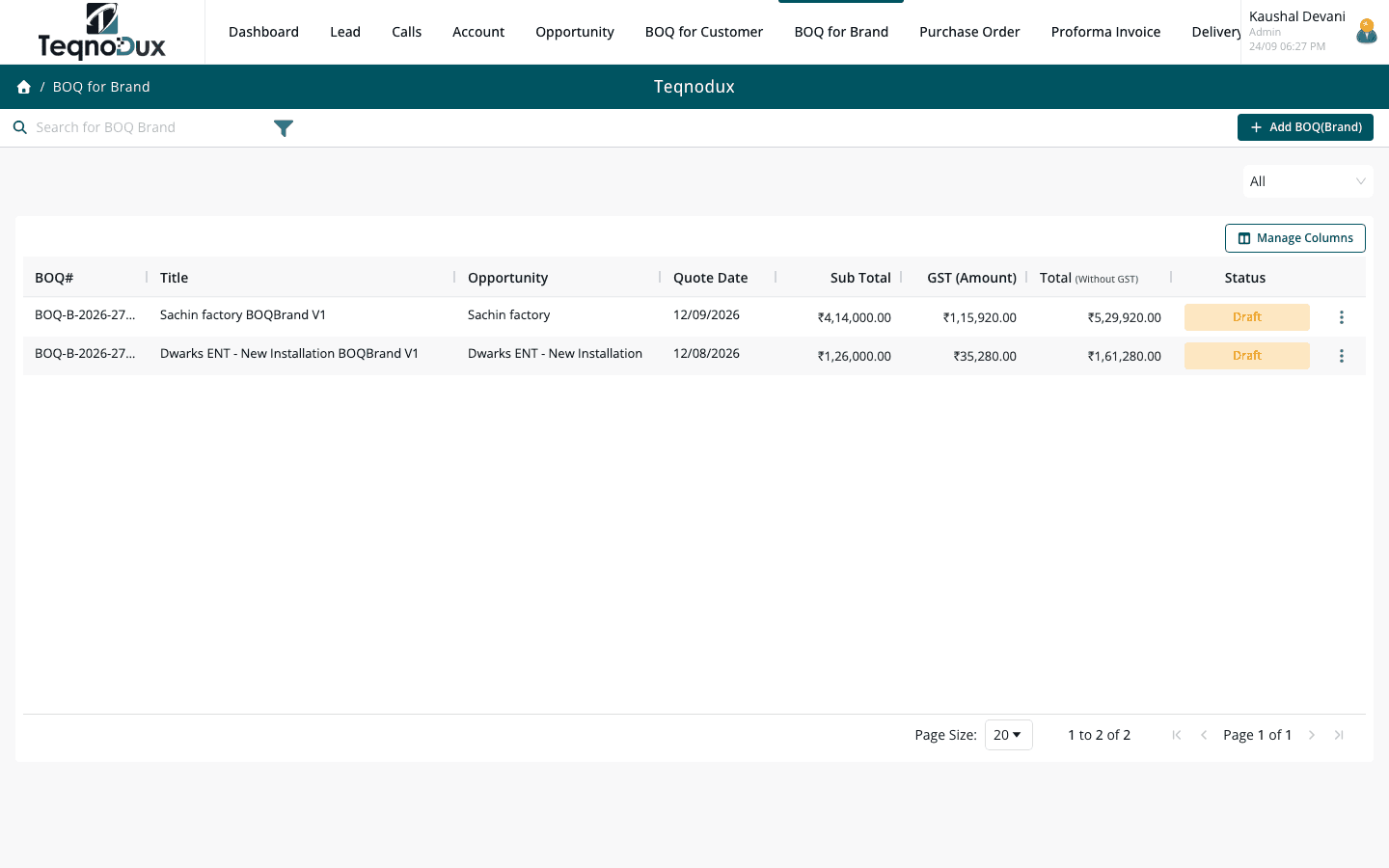
Everything BOQ for Brand handles
Send RFQ to multiple brand/supplier accounts simultaneously
Record quote received per brand per line item
Compare brand prices side by side before finalising
Link to opportunity for full project traceability
Status: Draft → RFQ Sent → Quote Received → Completed
Export to Excel for offline review
Copy existing BOQ Brand for similar projects
How it works in practice
01
Send RFQ to multiple brands simultaneously
Create a BOQ Brand against an Opportunity, add the line items you need quoted, and send an RFQ to multiple supplier accounts at once. Each brand gets the same specification — you get comparable responses.
- Link to multiple supplier accounts from the Accounts directory
- Same specification sent to all brands — apples-to-apples comparison
- Status tracks to RFQ Sent automatically when dispatched
02
Record and compare quotes per brand, per line item
As quotes come back, record the price each brand quoted per line item. The comparison view shows all brands side by side so the lowest price — or the best value — is obvious without maintaining a spreadsheet.
- Record quote received per supplier per line item
- Side-by-side price comparison across all brands
- Export to Excel for offline review with stakeholders
BOQ for Brand
Record and compare quotes per brand, per line item
Record quote received per supplier per line item
Side-by-side price comparison across all brands
Export to Excel for offline review with stakeholders
03
Link the winning quote to the project — full traceability
Once you've chosen a brand, mark the BOQ Brand as Completed and link the winning quote to your Opportunity. When you raise the PO, you know exactly what you committed to pay and why.
- Status: Draft → RFQ Sent → Quote Received → Completed
- Link completed BOQ Brand to Opportunity for project traceability
- PO creation references the finalised BOQ Brand pricing
BOQ for Brand
Link the winning quote to the project — full traceability
Status: Draft → RFQ Sent → Quote Received → Completed
Link completed BOQ Brand to Opportunity for project traceability
PO creation references the finalised BOQ Brand pricing
BOQ for Brand works with
Every module links across the platform — no re-entry, no disconnected data, no scattered tools.
Common questions
You'll need to create a Supplier account in Accounts / Directory first. This is a one-time step per brand. Once the account exists, it appears in all PO and BOQ Brand supplier selections.
The BOQ Brand comparison view shows all brands as columns and your line items as rows. The price each brand quoted per item is displayed side by side. You can see total per-brand cost at a glance.
Both are linked to the same Opportunity, giving you indirect traceability. You can see what you quoted to the client (Customer BOQ) and what suppliers quoted to you (Brand BOQ) from the same Opportunity record.
Yes. The BOQ Brand can be exported to Excel at any stage — including with all brand quotes filled in. Useful for sharing price comparisons with procurement managers for approval.
Your HVAC business deserves
better than a spreadsheet.
Join HVAC companies across India who've replaced WhatsApp chaos with one clean, connected system. Start free — no credit card, no contracts.